 Albumtale
 / Guides to your photo and text canvas
Add material to your canvas and keep the arrangement
Add the next photos and notes to your space. Keep the arrangement you want to preserve.
Steps
- Open the space you want to continue.
- Import the new photos or add a note.
- Lock the earlier objects you want to preserve. Place the added objects by hand, or request a whole-space arrangement that names the added objects and the locked material to keep.
- Check the new arrangement on the canvas. Use Undo to restore the previous layout or Redo to restore the result.
- Save your changes. If a draft conflicts with the saved version, keep a draft copy before reopening the space.
Example
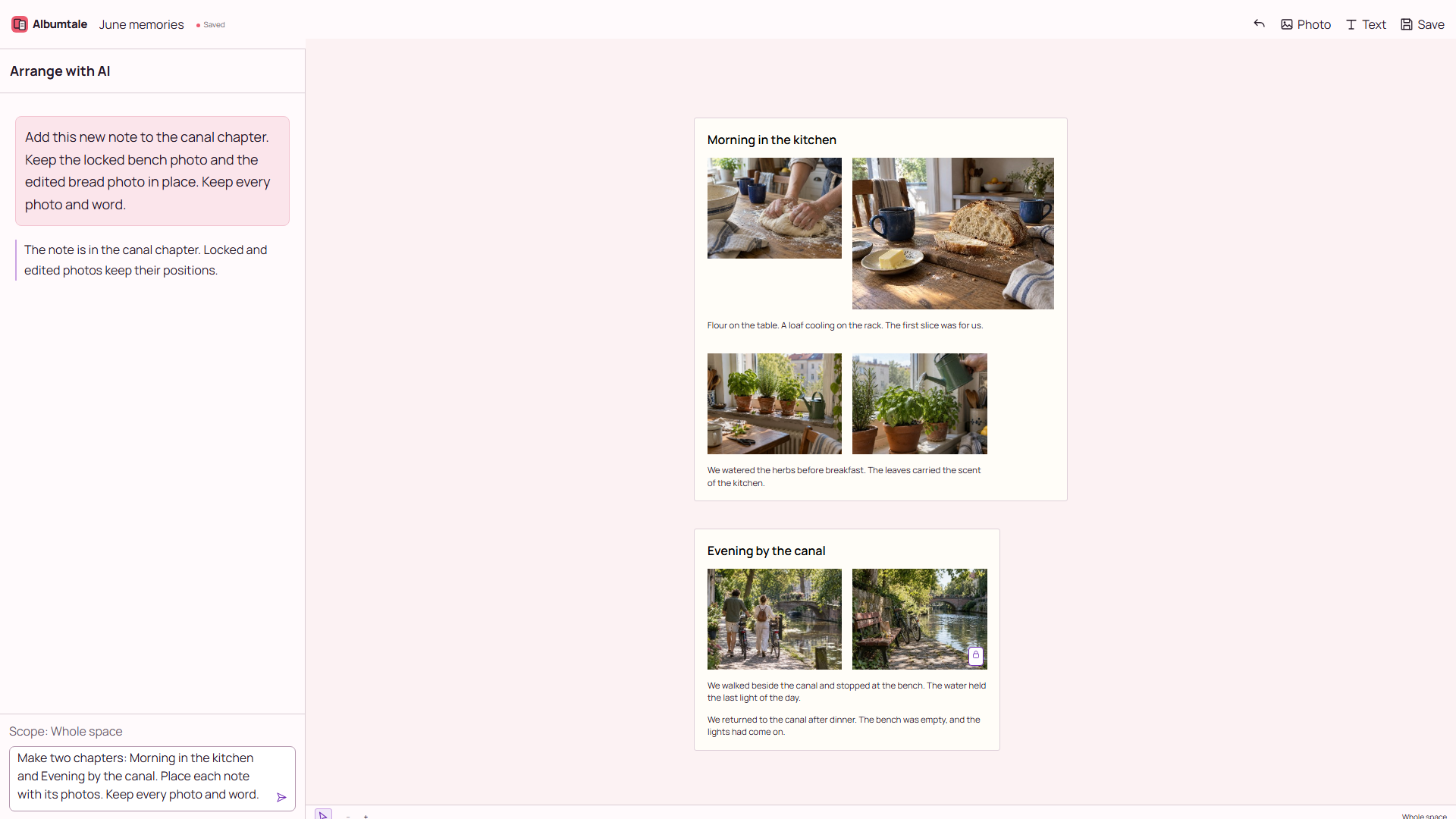
We returned to the canal after dinner. The bench was empty, and the lights had come on. Add this new note to the canal chapter. Keep the locked bench photo and the edited bread photo in place. Keep every photo and word.
Questions
Must AI arrange every new addition?
No. Add and place the objects by hand, or request an AI arrangement. Manual editing does not use AI credits.
What does the append scope preserve?
The append scope keeps the objects on the canvas at the start of the request. That includes a photo you have imported. To arrange imported additions, lock the earlier objects and use a whole-space request that identifies the additions.
What should I do if saving or recovery shows a conflict?
Keep the draft and source files. Download a draft copy if that option is offered. Open the saved space and choose which changes to keep.
Keep your source material
Use your own material or obtain permission for its use. Keep source names and the full original notes. A reference image shows a direction; it does not grant permission to reproduce the work. Keep another copy of your source files.
By Albumtale. Updated .