 Albumtale
 / Guides to your photo and text canvas
Edit and protect the objects on your canvas
Change photos and text as independent objects. Use selection, object tools, undo and redo, and locks to preserve the parts you want to keep.
Steps
- Select the object you want to change. Use multiple selection when several objects need one move or alignment.
- Move, resize or rotate photos. Edit the text or change its font, size and color.
- Use alignment, groups and layers to organize the selected objects. Copy or delete the selection when the task calls for it.
- Use Undo to reverse a change or Redo to restore it.
- Lock the photos and notes you want to keep and save the space.
Example
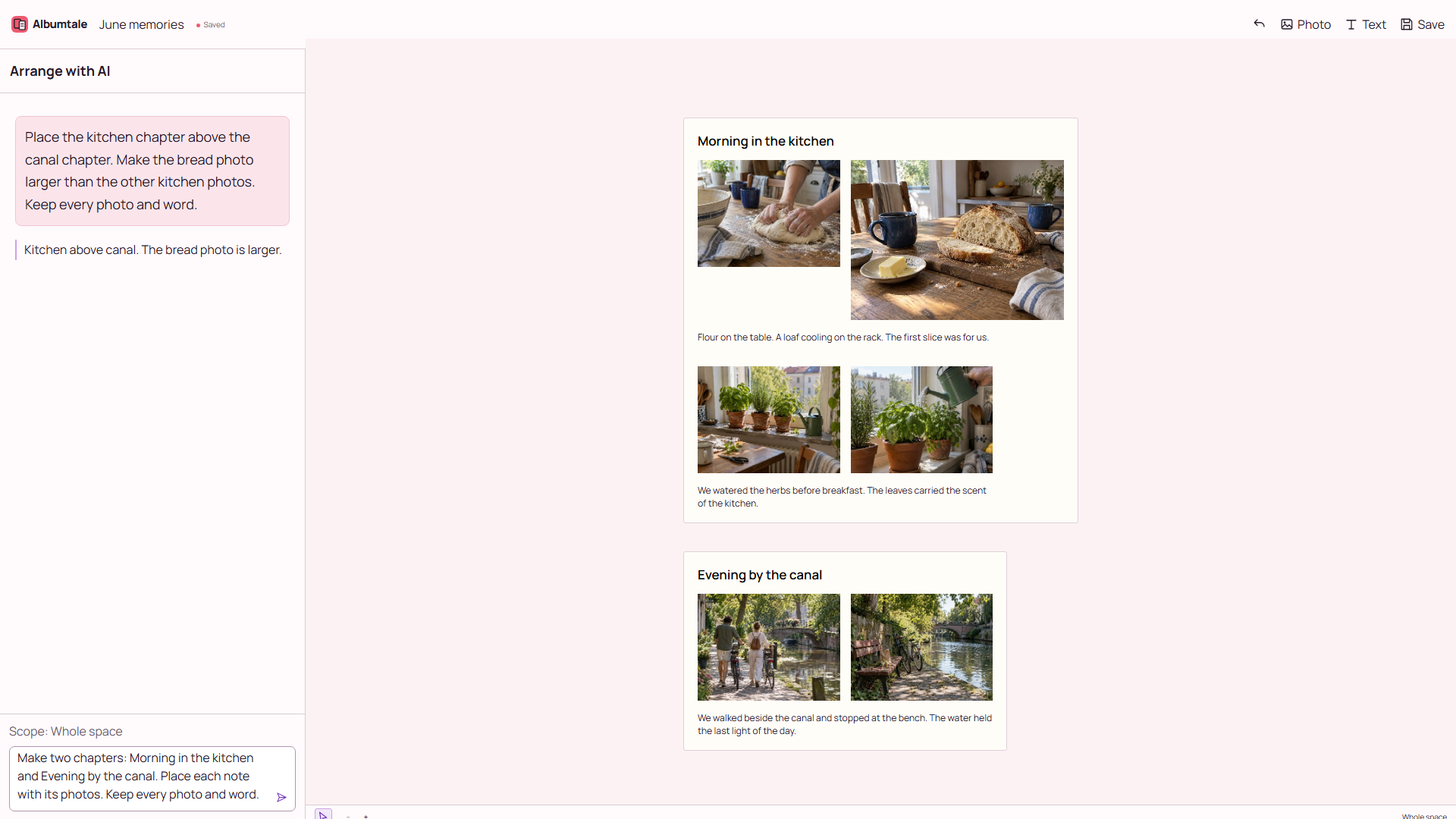
Select the bread photo and change its size. Use Undo and Redo. Lock the bench photo before asking for another layout.
Questions
What is the difference between a lock and a manual change?
A lock protects a photo or note. AI preserves changes you make to position, size, rotation and text style.
Can I keep editing after an AI arrangement?
Yes. The arrangement uses independent canvas objects. Photos and text remain available for selection and editing after the result is applied.
Will an Arabic or Hebrew interface mirror my canvas?
The interface uses right-to-left controls. Canvas coordinates and the positions of your photos and text are not mirrored.
Keep your source material
Use your own material or obtain permission for its use. Keep source names and the full original notes. A reference image shows a direction; it does not grant permission to reproduce the work. Keep another copy of your source files.
By Albumtale. Updated .