 Albumtale
 / Guides to your photo and text canvas
Arrange photos and text with a natural-language request
Describe the layout you need, send your request and check the result on your canvas.
Steps
- Add your photos and complete notes. Save the space before requesting an arrangement.
- Describe the groups, main photos, related notes and reading order. State which objects or choices must remain.
- Send your layout request and wait for the arrangement to appear on the canvas.
- Review the photo groups, note placement and reading order.
- Use Undo to restore the previous layout or Redo to restore the result. Save the space.
Example
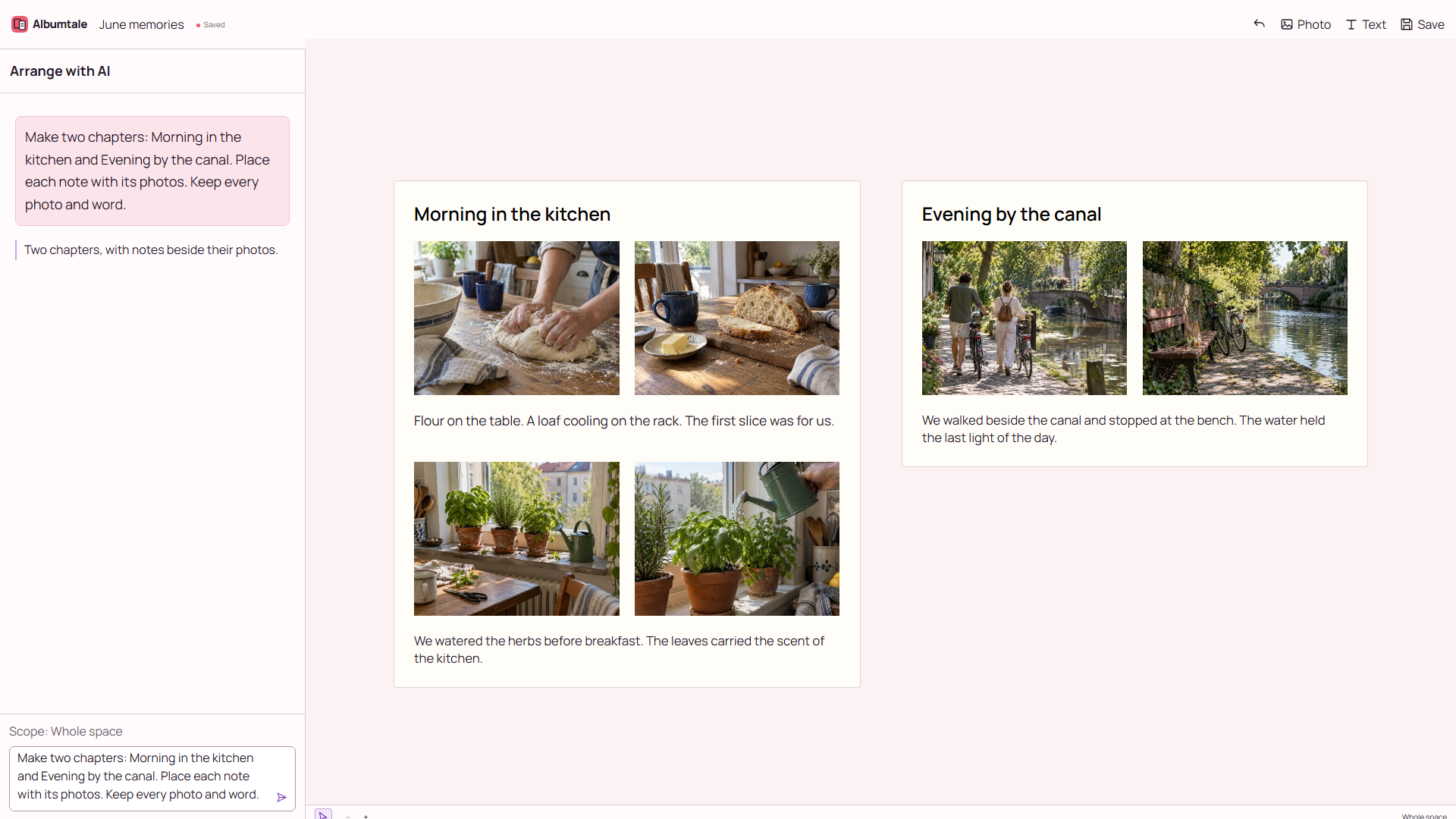
Make two chapters: Morning in the kitchen and Evening by the canal. Place each note with its photos. Keep every photo and word.
Questions
How does a layout request change my canvas?
A layout that passes the checks is applied to the canvas. Use Undo to restore the previous layout. A failed check keeps the previous layout.
What if I want a different layout?
Edit the photos and notes or describe the change you want. A failed request keeps the previous layout.
Does manual editing spend AI credits?
Manual editing, viewing and export use no AI credits. AI layout uses credits under the account rules on the pricing page. Undoing a successful AI result does not refund its credit charge.
Keep your source material
Use your own material or obtain permission for its use. Keep source names and the full original notes. A reference image shows a direction; it does not grant permission to reproduce the work. Keep another copy of your source files.
By Albumtale. Updated .